Custom QR code — colours, shapes, templates and logo
Choose the colours of your QR codes on all plans. With Pro and Entreprise, add shapes and save style templates; with Entreprise, place your logo in the centre and require your templates for your team.
Plans: Free · Pro · Entreprise
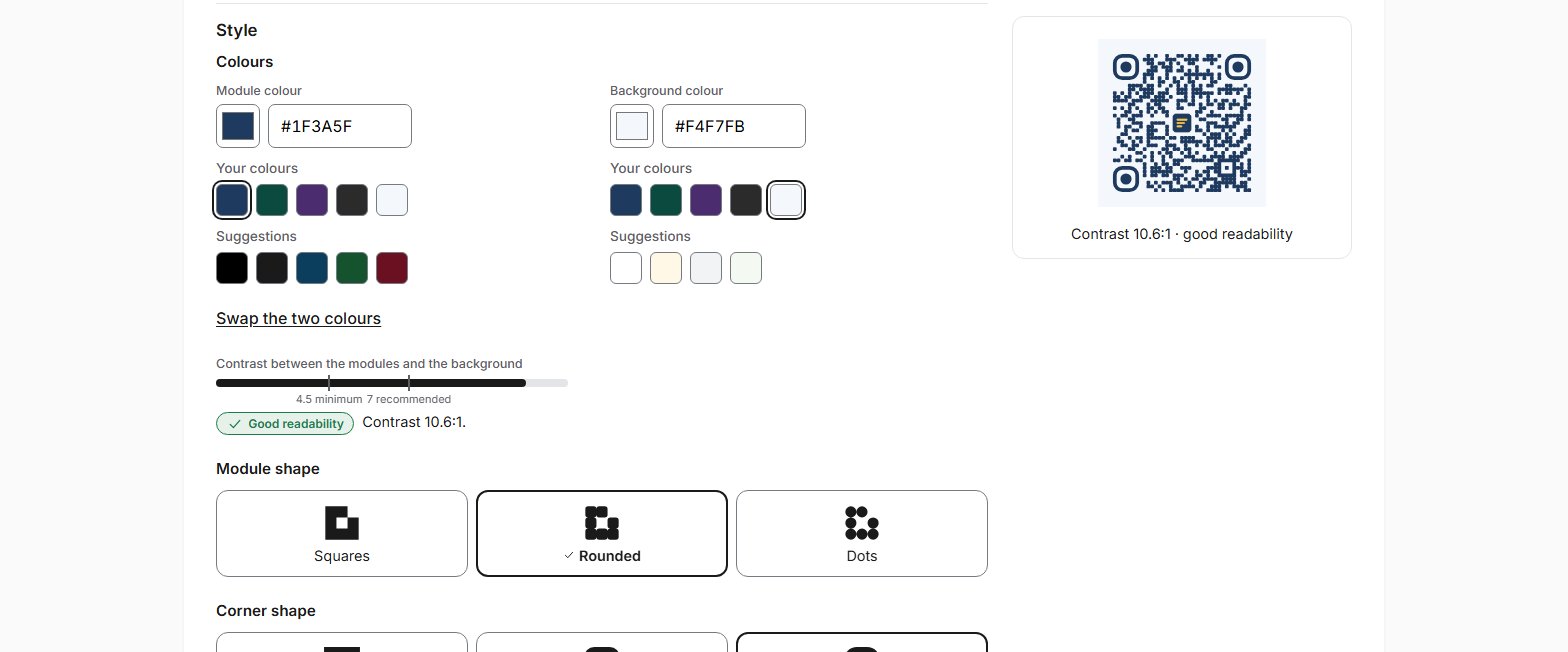
In a QR code's editor, the Style section sets the module colour and the background colour, on all plans, including the Free plan. The preview follows your settings, and a contrast indicator warns you about a risky combination: the app refuses contrast that is too low and modules lighter than the background.
With the Pro and Entreprise plans, you also choose the shape of the modules (squares, rounded or dots) and of the corners (squares, rounded or round centre). You save your settings as style templates, up to 10 with Pro and 100 with Entreprise, and the “Your colours” palette keeps up to 12 of your brand colours one click away. The template set as default applies to every QR code created in the dashboard, and a template can be applied to up to 100 QR codes at once from the list.
With the Entreprise plan, you can require your templates: team members then pick one of them instead of setting colours and shapes themselves. The “Manager of style templates” permission decides who creates and edits these templates.
With the Entreprise plan, you can also place your logo in the centre of your QR codes. You upload it once to the account's logo library, then choose it in a template or a QR code, in small, medium or large size. The app limits the space the logo takes and automatically strengthens the QR code's error correction. Your logo is never shown to people scanning, except in the image you print or share yourself. You guarantee that you have the right to use it, and it can be deleted at any time.
Customisation only changes the image: the destination and the redirect work as for any QR code. The style applies to PNG and SVG downloads and to the ZIP file. These rules reduce the risk of an unreadable QR code without removing it. It is up to you to check the readability of a QR code whose colours, shapes or logo you choose: test it before printing, with several phones, at the intended size and on the intended material. Read the help page.
A style template with a logo and its live preview (demo account, Entreprise plan).
Frequently asked questions
Can I change colours on the Free plan?
Yes. Module and background colours are available on all plans. Shapes, style templates and the “Your colours” palette require a Pro or Entreprise subscription. On the Free plan, you see a preview of the shapes, but cannot apply them.
Does a colour QR code scan as well as a black-and-white one?
If the contrast is sufficient, it scans in most cases. The app requires sufficient contrast and modules darker than the background, and keeps the 4-module margin around the QR code. These are minimum precautions: scanning also depends on print size, material, ink, lighting and the phone. Test before printing. The exact thresholds are on the help page.
What is a style template?
A set of colours and shapes saved under a name. You apply it to a QR code by choosing it in the editor, or to up to 100 QR codes at once from the list. The style is copied onto each QR code: editing a template only changes the QR codes that use it if you ask for it, by ticking “Also apply to the QR codes that use this template”.
What is the default template for?
It applies automatically to every QR code created in the dashboard. It is set by an administrator of the account and, with the Entreprise plan, also by a member with the “Manager of style templates” permission. When creating a QR code, you can choose another template. Via the API, a QR code created without a template also gets the default template.
How do I apply a visual identity across my team?
With the Entreprise plan, turn on the option that requires the account's templates. Members then pick one of your templates, without being able to set colours and shapes themselves. Administrators and members with the “Manager of style templates” permission create and edit the templates, and keep a free style. Existing QR codes do not change on their own: apply a template to them from the list.
What happens to my templates if I change plan?
Nothing is deleted. When moving from Entreprise to Pro, your templates are no longer required and remain usable; above 10, you cannot create new ones. When a paid subscription ends, only colours remain applied; your shapes and templates are kept as long as your account exists, and apply again if you take out a Pro or Entreprise subscription. When leaving the Entreprise plan, the logo no longer appears on images; your logos remain visible and can be deleted. Images already downloaded do not change.
Does the style apply to the image obtained via the API?
Yes, with the Pro and Entreprise plans, which include API access: the PNG or SVG image obtained via the API uses the style saved on the QR code. Since API version 1.2, you can also specify a style template when creating or editing a QR code, and list the account's templates. See the API documentation.
Can I put my logo in the centre of a QR code?
Yes, with the Entreprise plan. Upload your logo as PNG or JPEG to the logo library, accept the rules for logos once for the account, then choose it in a template or a QR code. A QR code with a logo scans in most cases, because the app limits the logo's size and strengthens error correction; test it before printing all the same, especially in large size.
Can I use any logo?
No. Use your organisation's logo, or a logo you have the right to use. Another organisation's brand or logo, public coats of arms or a protected emblem are prohibited without permission. In the event of a breach of the terms and conditions or a credible report, QR Suisse can disable a logo: it then no longer appears on images produced afterwards, and your QR codes' redirects are not affected.
What does QR Suisse do with my logo?
It converts it into a reduced PNG image without metadata, stores it in Switzerland and includes it in your QR codes' images. It does not publish it, does not show it to people scanning, and does not use it for promotion without your separate written consent. Our team only displays it when it has been reported, on express request. The logo can be deleted at any time, even if it is in use.